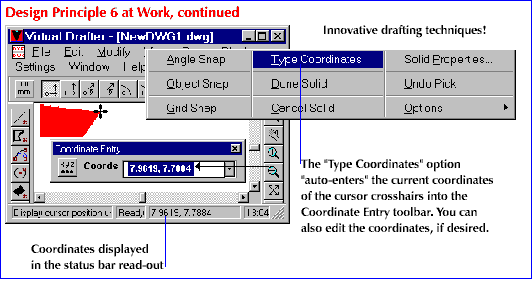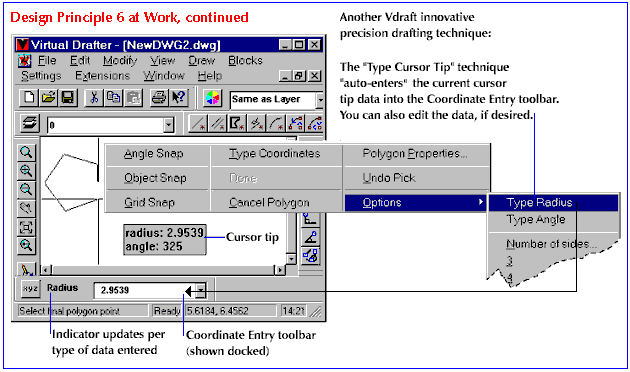
The vast majority of CAD users still rely on drawing speed, accuracy, and productivity as their benchmarks for a CAD program's utility. Vdraft offers significant usability advantages and dozens of productivity-boosters that speak to the needs of both novice CAD users and power users.
Here are some key guiding principles that underlie Vdraft's application design and user interface. Visual examples provide a small illustration of each principle at work and how it enhances the way you work with CAD.
The user can tap into warp-speed productivity via a related power technique known as a flick: once the spatial positions of individual pop-up items become familiar, the user can simply click--or flick--in the appropriate direction in the drawing space without even displaying the pop-up menu, if desired.
Equally important, Vdraft eliminates the guesswork from precision CAD drawing. As the user manipulates an object, Vdraft provides steady, visual feedback in sync with the user's actions--for instance, "ghosted," "rubber-banding" outlines to indicate the result of an action (position, size, angle, et cetera), graphic cues for object snap points before the actual pick, a preview of a block before and during insertion, and so on.
Vdraft's single Properties command is equal to at least four different AutoCAD object property commands (*DDMODIFY, *DDCHPROP, *CHPROP, and *CHANGE), depending on application context/mode--for example, creating versus editing objects. Unlike AutoCAD, Vdraft is not burdened by separate tiers of redundant commands for the same actions in different contexts (the result of years of AutoCAD evolution from character-based UI to GUI).
Thus, Vdraft's streamlined toolset is actually equivalent to much of AutoCAD's core functionality.
*Note: As noted in the section on
Easy Transition from AutoCAD, Vdraft supports all of these equivalent commands. Users familiar with AutoCAD who wish to use Vdraft's AutoCAD Keyboard Commands feature can type in DDMODIFY, DDCHPROP, CHPROP, or CHANGE to have Vdraft execute the Properties command.
By contrast, both AutoCAD methods for changing the current view impede the user's drawing speed by requiring multiple steps: AutoCAD's method requires 1) toolbar button/menu command; 2) view selection from dialog box; 3) click Restore button; and 4) click OK button. AutoCAD's command line method requires 1) type the command (View), 2) enter view name; or, possibly 3) enter a question mark (?) just to get a list of possible view names to enter.
Meanwhile, the Vdraft user is already several steps ahead. . .
Another example, Vdraft's Colors toolbar (bottom example to the left), demonstrates strong user-productivity-oriented design: not only are all colors listed by number in the drop-down, but also, the color swatch for each color choice is included. The user need not even access the main Colors dialog box, unless desired.
Vdraft is loaded with tools that demonstrate this kind of attention to detail
In addition, the majority of Vdraft's dialog boxes are modeless: with a few appropriate exceptions, the user can work with almost any dialog box open during a drawing session. Also, most Vdraft commands are "transparent"--i.e., additional commands can be started while another is still in progress (for example, the user can zoom or pan any time in the middle of a command, toggle object snaps on/off, and so on).
Although the modeless UI model is generally much more complex to implement from the development standpoint, SoftSource has chosen to "go the extra mile" to deliver more overall usability and flexibility for the user.
 For example, during entity creation or when an object is selected for editing, Vdraft pre-loads pop-up menus with appropriate options and commands such as Rotate, Move, Properties, and so on. A simple, right-mouse-button click displays a context-sensitive pop-up--instant access (without the need to recall commands) to an array of options for object manipulation. In this way, the user quickly and painlessly masters considerable application power and speed at the outset.
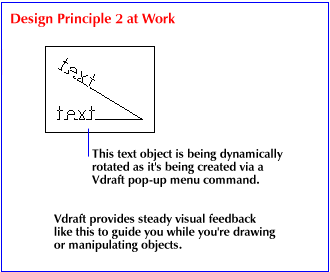 Vdraft makes it easy to manipulate and fine-tune objects in the drawing space. For example, dynamic rotation, moving, and scaling commands are among the many options instantly available via a selected object's context-sensitive pop-up (see the example under design principle 1, above).
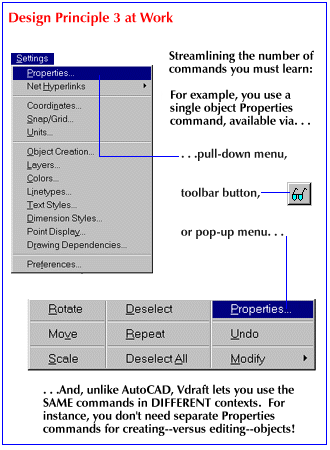 Vdraft is designed from the ground up to incorporate a GUI (graphical user interface) and a lean, but full-featured tool/command structure. For example, Vdraft has one object Properties command, available through the Settings menu, pop-up, or toolbar (shown at the left). Furthermore, this command is always available, whether the user is creating or editing objects.
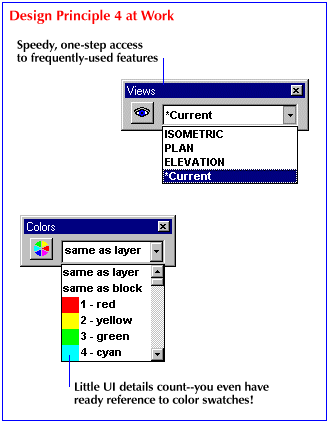 For example, to change the current view to a named view, the user clicks Vdraft's Views toolbar (top example to the left), a top-level UI combo box. The user can dock the Views toolbar anywhere along the edge of the drawing space, or drag it anywhere it's convenient for the tasks at hand.
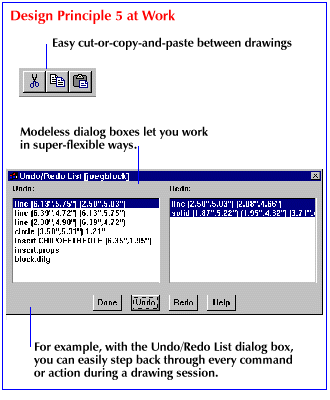 Vdraft is designed to provide the CAD user with utmost flexibility--the ability to move easily among objects, tasks, and drawings--to maintain the Big Picture and track the relationships between components of a design. For example, Vdraft's MDI support makes it easy and practical to edit multiple drawings in a single instance of the application. Building on that, Vdraft offers seamless cut/copy-and-paste between drawings, a capability AutoCAD users will envy.


 Tools and User Interface
 Value and Cost-Effectiveness Checklist
 Return to Vdraft's Home Page
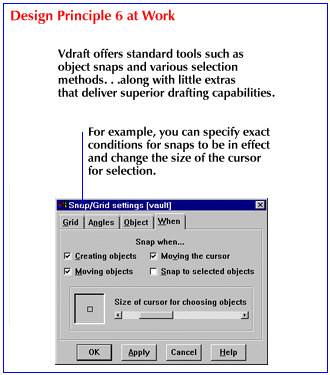 Although Vdraft makes it easy to manipulate objects on-the-fly and to "eyeball," the program is really designed for CAD's rigorous demands in precision drawing. The user can easily draw by coordinates via the Coordinates toolbar or via the object's modeless Properties dialog box. The latter design approach is yet another way that Vdraft simplifies command structure and access for the user: As shown in the second example here and in the previous example under design principle 5, the Properties dialog box by itself provides direct access to great stores of key drawing data. Again, via one command/dialog box, the user accesses options that take programs like AutoCAD several commands to cover.